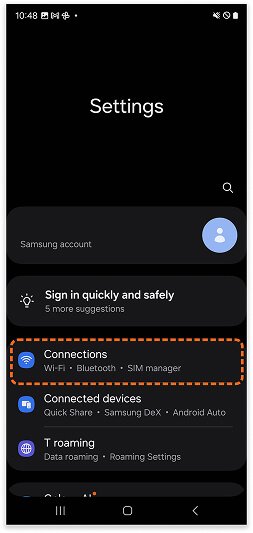
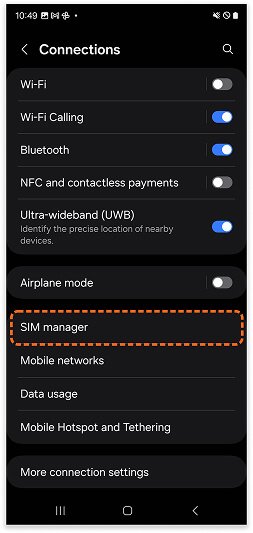
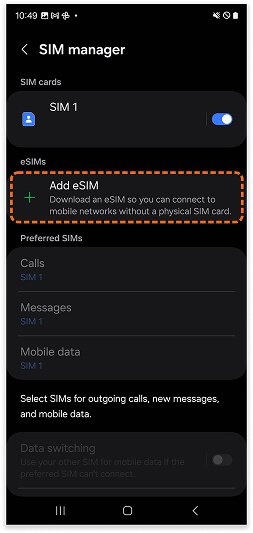
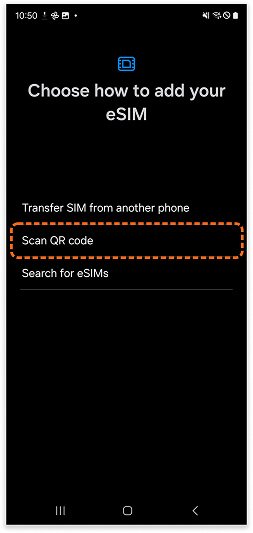
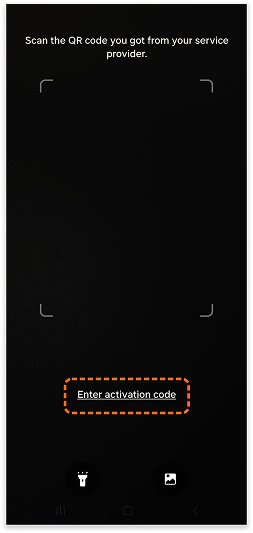
At the bottom of the screen, tap [Enter activation code].
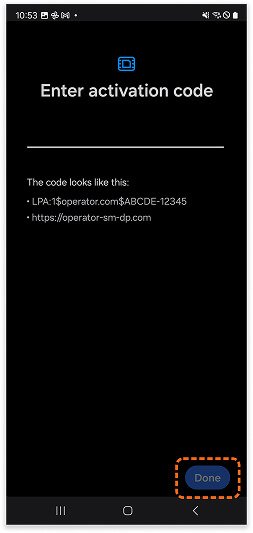
6. Enter Activation Code
Retrieve the activation code from your KiNSim voucher in My eSIM or from your email. Enter the necessary details and tap [Done] on the bottom-right corner.
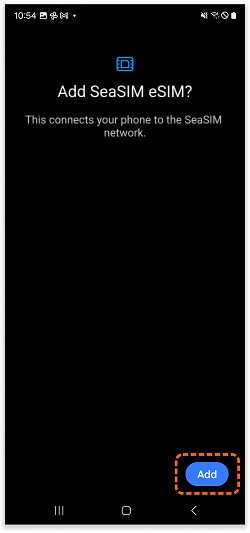
7. Check SIM Information
The device will take a few minutes to process the eSIM information. Once complete, tap [Add] to install the eSIM.
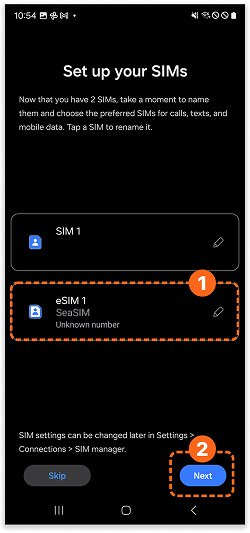
8. Edit eSIM Label
Tap edit button to rename your eSIM.
You can enter any name you like—let’s use KiNSim for this example.
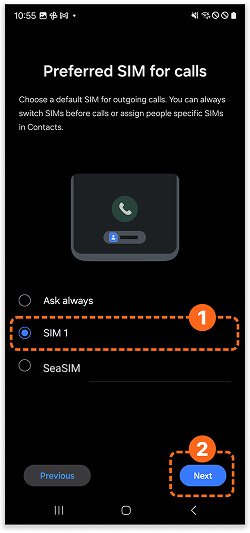
9. Set Default Line for calls
Choose [SIM 1] as your default line for calls.
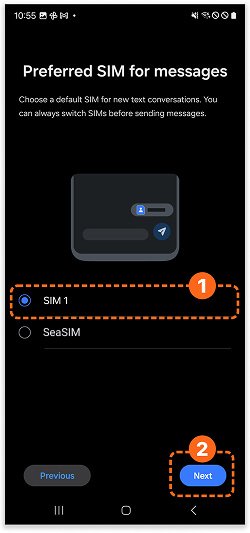
10. Set Default Line for messages
Choose [SIM 1] as your default line for messages.
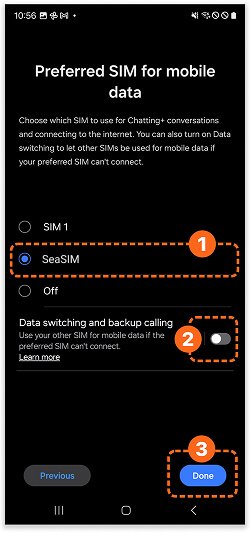
11. Set Cellular Data
Make sure Mobile Data is set to the KiNSim. For calls and messages, you can continue using your main SIM card. Make sure [Data switching] is set to OFF.