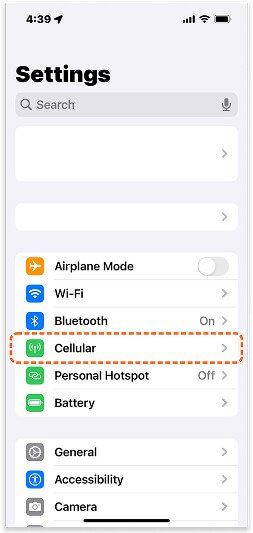
Go to your device’s [Settings], then tap
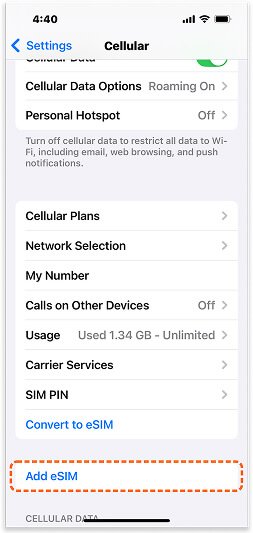
In the SIMs section, select [Add eSIM] to begin the installation.
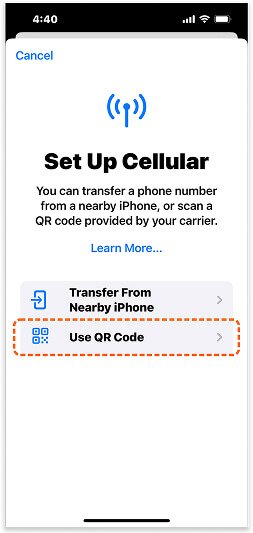
Select [Use QR Code] as your preferred installation method.
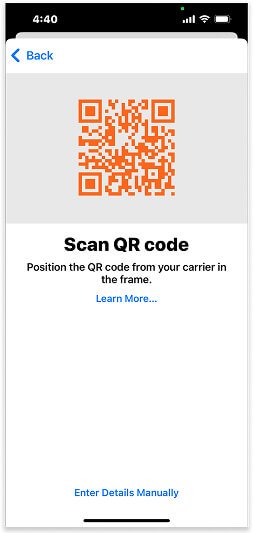
Scan the QR code provided by KiNSim. You can find it in your email or under [My eSIM] on the website.
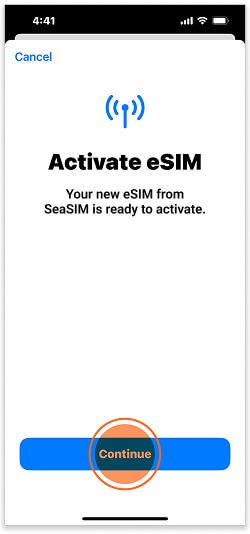
Follow the on-screen instructions. The activation process may take a few minutes.
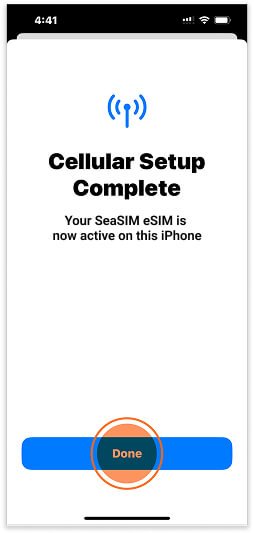
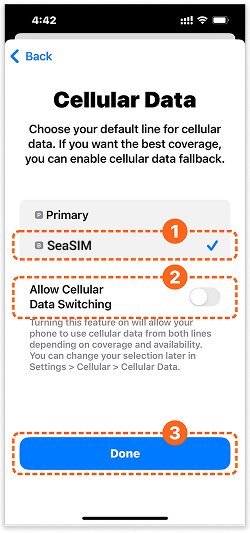
Once the process is complete, tap the [Done] button at the bottom of the screen.
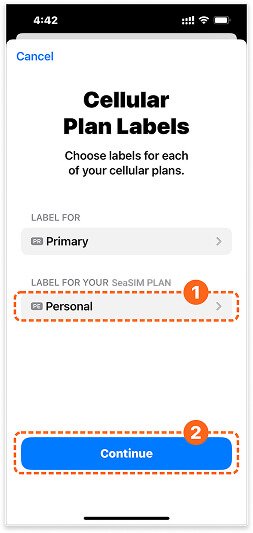
You can give your eSIM a custom label (e.g., “KiNSim”). Then tap [Continue] to proceed.
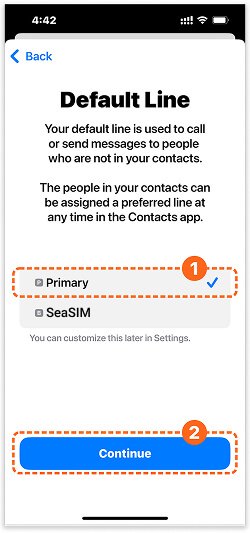
Choose [Primary] as your default line for calls and messages.
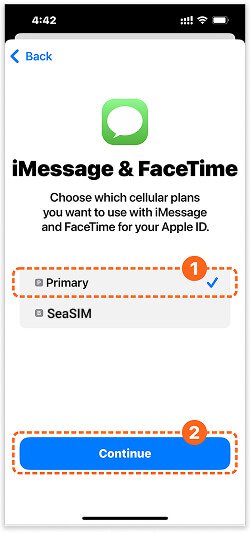
Select [Primary] as the line to use for iMessage and FaceTime.
Choose your eSIM (e.g., “KiNSim”) as the default line for cellular data. Make sure [Data Switching] is turned OFF.
If you have shopped with us before, please enter your details below. If you are a new customer, please proceed to the billing section. 1
Don't have an account? SIGN UP FOR FREE