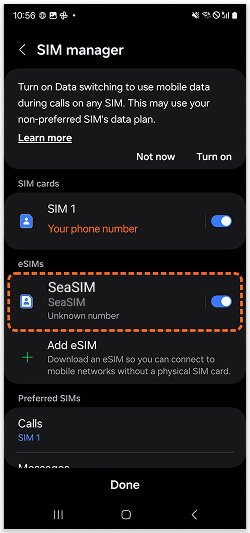
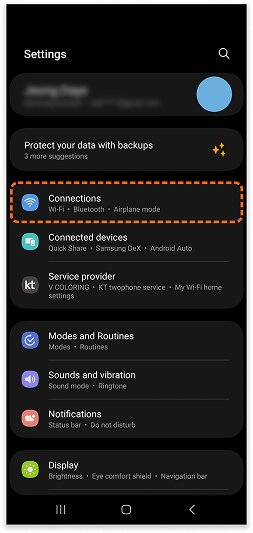
Go to [Settings > Connections > SIM Manager] and switch KiNSim to On.
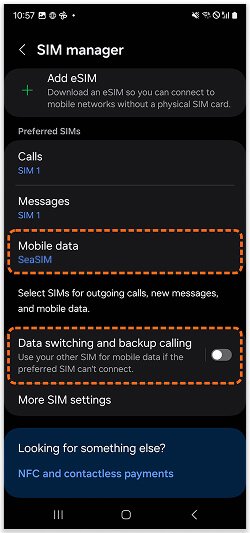
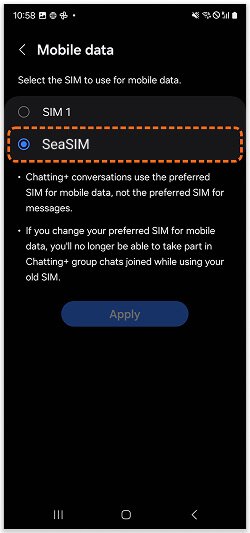
Select KiNSim as your Mobile Data line, and make sure [Data Switching] is set to OFF.
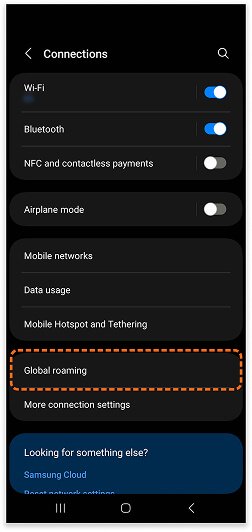
Go to [Settings > Connections] and tap [Global roaming] or [Mobile Network].
*This step may vary depending on your carrier or device.
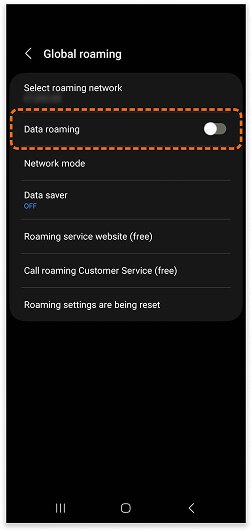
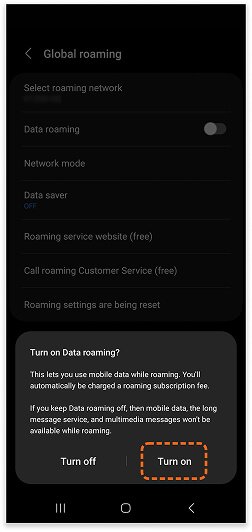
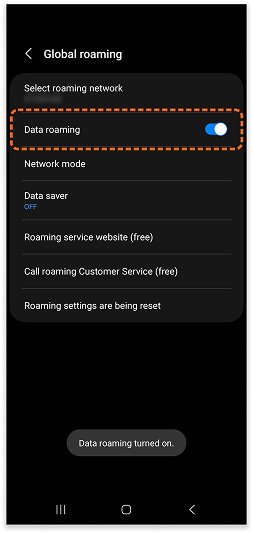
Turn [Data roaimg] ON.
If two signal bars appear at the top of your screen, your eSIM has been successfully activated.
*Only one line will appear if your device does not have a physical SIM card, or if your current mobile line is turned off.
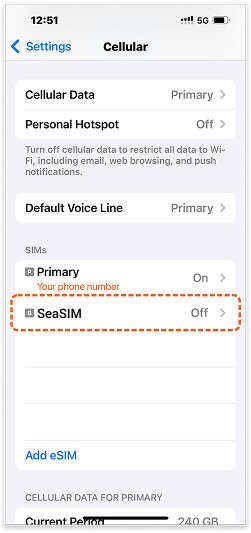
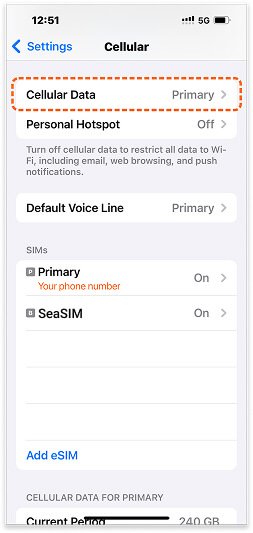
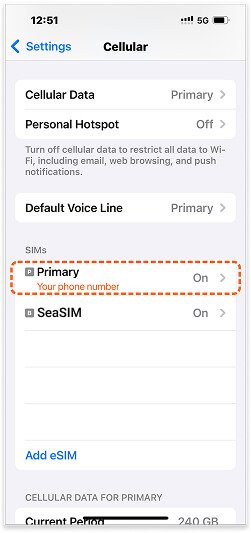
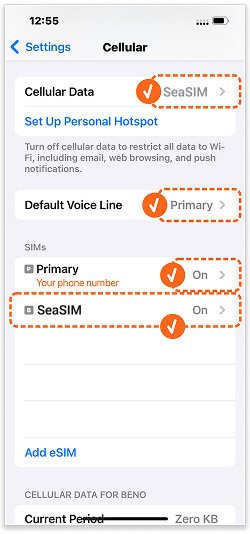
Go to [Settings > Cellular] and tap the eSIM you installed before your trip.
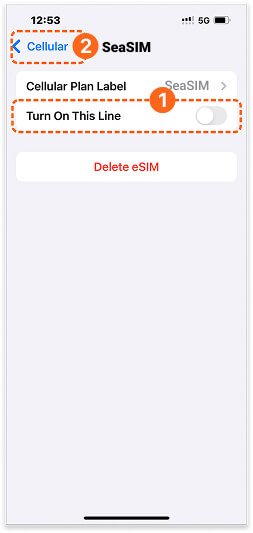
Tap [Turn On This Line], then go back to the previous screen.
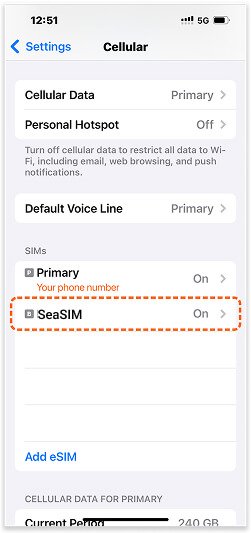
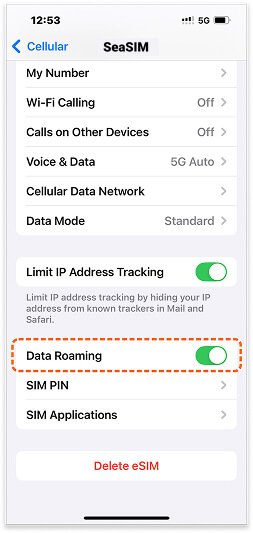
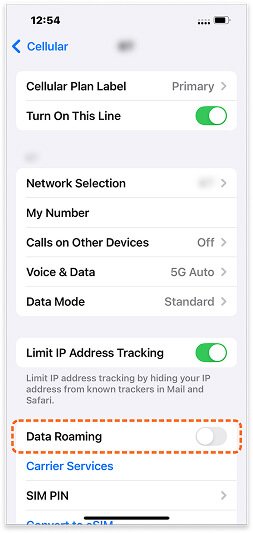
Tap the eSIM again (now in the “On” state) and switch [Data Roaming] to On.
*For local network plans, please keep Data Roaming turned Off.
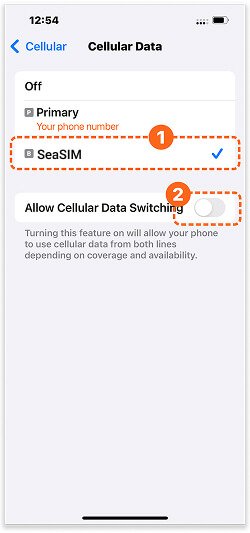
Tap [Cellular Data], then select your eSIM as the active data line.
*Make sure [Allow Cellular Data Switching] is turned OFF to avoid unexpected roaming charges.
Tap your Primary line and turn [Data Roaming] to OFF.
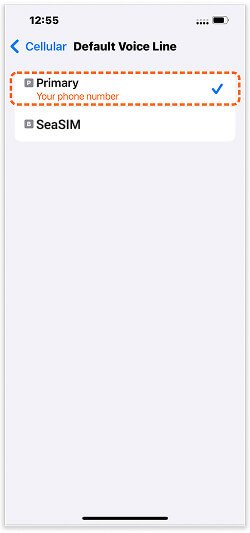
Ensure your [Default Voice Line] is still set to Primary.
If all settings are configured as above, your eSIM is now successfully activated.
*In short, your voice and messaging remain on your main line, while only data usage isswitched to the eSIM for use during your trip.
If you have shopped with us before, please enter your details below. If you are a new customer, please proceed to the billing section. 1
Don't have an account? SIGN UP FOR FREE