








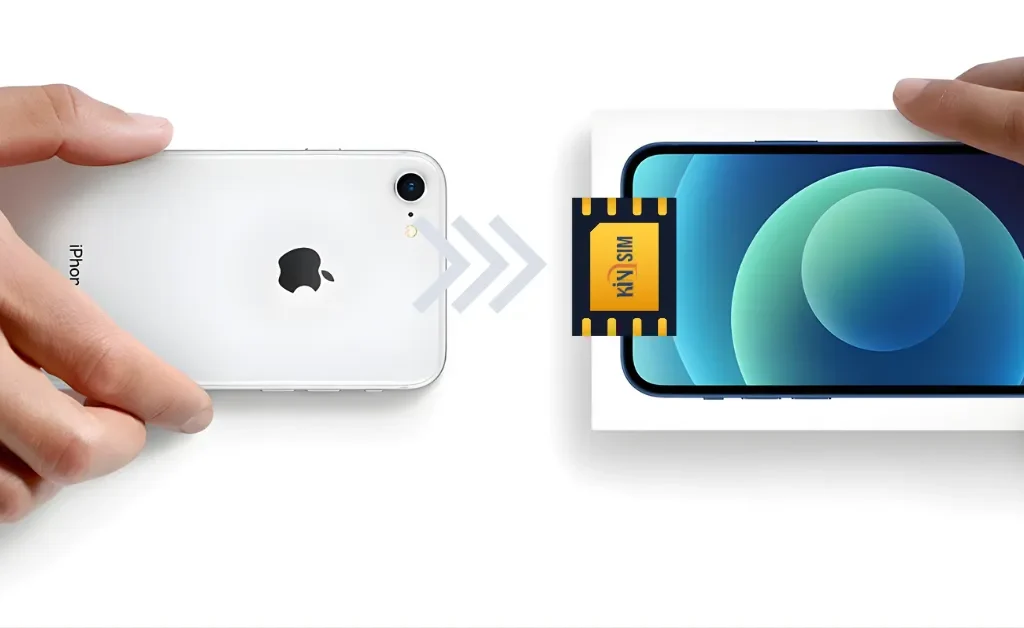
Upgrading your smartphone is an excellent experience, but it comes with a modern task: moving your mobile plan. Unlike physical SIM cards, an eSIM (or “embedded SIM”) is a digital chip built directly into your phone. You cannot physically move it, but this technology offers great flexibility, such as holding multiple plans or adding a travel plan easily.
This convenience makes many people wonder how to transfer eSIM to a new phone. The process is not complicated, but it is different from swapping a plastic card and requires following specific steps.
This guide provides a clear, formal process for transferring your eSIM. We will cover the necessary preparations, step-by-step instructions, and the essential security step of clearing your old phone.
Before You Begin: Essential Preparations
A smooth transfer requires a few important checks. Before you start, please review this list:
- Device Compatibility: Confirm that both your old and new phones are eSIM-compatible. Most flagship models released after 2018 support eSIM, but it is always best to verify.
- Wi-Fi Connection: You must have a stable Wi-Fi connection for both devices. The new phone needs internet access to download and authorize the new eSIM profile from your carrier.
- Software Updates: Ensure both phones are running the latest operating system (iOS or Android). Updates often include the newest, simplest features to transfer esim on phone.
- Carrier Policy: Check your mobile carrier’s website or app. Every carrier handles this differently. Some provide a new QR code for the transfer, while others have a “transfer device” tool in their app.
- Device Lock Status: Your new phone must be “unlocked.” If it is locked to a different carrier (e.g., you bought it from AT&T but your plan is T-Mobile), it cannot accept your current eSIM profile.
How to Transfer eSIM to a New Phone: Step-by-Step
The exact method to transfer esim on phone varies by operating system. Below are the most common scenarios.
Scenario 1: iPhone to iPhone

Apple’s Quick Start feature (on iOS 16 or later) makes this process very simple.
- Place your new, un-setup iPhone next to your old one to begin the automatic “Quick Start” setup.
- When the setup asks you to set up your mobile plan, select your phone number.
- Choose the option “Transfer from Nearby iPhone.”
- A prompt will appear on your old iPhone. Confirm the transfer by tapping “Transfer” and entering your passcode if asked.
- Wait a few minutes. The new phone will activate the eSIM, and the old phone’s profile will be deactivated.
- If you already set up your new phone, go to Settings > Cellular > Add eSIM and see if the “Transfer From Nearby iPhone” option appears.
Scenario 2: Android to Android
This process is becoming easier but is less standardized than Apple’s. The most reliable method is still the QR code.
- While some new Samsung or Pixel phones may offer a transfer tool during setup, the most universal method is to get a new QR code from your carrier.
- Log into your carrier’s app or website. Request to “change device” or “get a new eSIM QR code.”
- On your new Android phone, go to Settings > Network & internet > SIMs.
- Tap “Add eSIM” (or “Download a SIM instead?”).
- Scan the new QR code from your carrier to download and activate the profile.
Scenario 3: iPhone to Android (or Android to iPhone)
When switching platforms, a direct transfer is not possible. You must use the carrier QR code method.
- Log into your carrier’s app or website (or call them) and inform them you are changing to a new device.
- They will provide a new activation QR code. This deactivates the eSIM on your old phone.
- On your new phone, go to the “Add eSIM” menu in your network settings (e.g., Settings > Cellular > Add eSIM on iPhone).
- Scan the QR code to download and activate your plan.
Final Step: How to Delete eSIM from Old Phone
After you confirm your service is working on your new device, you must securely erase your old profile. This is a critical security step. Failing to do this could allow someone else to access and use your phone number.
- On iPhone: Go to Settings > Cellular. Tap the eSIM plan you wish to remove, then tap “Delete eSIM” (or “Remove Cellular Plan”).
- On Android: Go to Settings > Network & internet > SIMs. Tap the eSIM profile, then select “Delete” or “Erase SIM”.
Note: This action to delete esim from old phones does not cancel your service plan, it just removes the “key” from that device. This is different from deleting a temporary, pay-as-you-go travel eSIM, which is a normal process when a trip is finished.
Troubleshooting Common Issues
- “Transfer Failed”: Restart both phones, make sure they are on the same stable Wi-Fi, and try the process again.
- “No Service After Transfer”: Restart your new phone. If that fails, go to settings and make sure the eSIM line is toggled “On.”
- “QR Code Not Working”: eSIM QR codes are often for one-time use. If the transfer fails, you may need to request a new QR code from your carrier.
- “eSIM is Locked”: This means your phone is locked to a specific carrier. You must contact that carrier to unlock the device before it can accept a new eSIM.
Conclusion
Understanding how to transfer eSIM to a new phone is an essential skill in our digital world. By following these steps—preparing your devices, choosing the correct method, and securely deleting your old profile—you can ensure a smooth transition.
Once your primary plan is securely transferred, your new phone is ready to leverage the full power of eSIM technology. This includes keeping your home plan active for calls while adding a separate, flexible data eSIM to avoid high international roaming fees. Providers like KiNSim are an excellent example, offering affordable data plans for travel in Southeast Asia and beyond, which you can easily install on your new phone right alongside your main plan.